Yes. Grok Bot can edit your own video on desktop or phone as soon as you connect it to ChatCut in a single message. Instead of rendering a flat clip you cannot change, Grok Bot works from its own persistent cloud computer and operates ChatCut’s AI video editor over HTTPS, so every rough cut, word-level caption, punch-in zoom, Motion Graphic, generated B-roll shot, and music bed lands on an editable web timeline. To document how to use Grok Bot for a complete edit, we ran the full workflow in the macOS Grok Bot app on November 14 and 15, 2026: connecting a new bot took 53 seconds, and turning a 75.0-second 1080p raw take into a finished 43.8-second 9:16 Short took 37 minutes 54 seconds and 13.72 ChatCut credits.
If you edit with another desktop coding agent, we published separate walkthroughs for ChatGPT and Codex, Claude Code, and Google Antigravity. Those agents connect to ChatCut Desktop on your Mac or Windows PC; Grok Bot runs the entire connection in the cloud, so you can start or finish the same edit from your phone.
How Grok Bot video editing works: cloud computer, phone access, and two-way billing
Before you send your first clip, three product details separate Grok Bot video editing from ordinary chat apps and local desktop plugins:
- Grok Bot is not the standard Grok chat on
grok.comor X. Launched in beta on August 11, 2026 (Grok Bot 101), Grok Bot is xAI’s standalone agent app with its own persistent cloud computer, Connect apps permissions, and reusable skills (Grok Bot FAQ). Standard Grok ongrok.com, X, or the regular Grok mobile app cannot connect to ChatCut this way; if you want to compare xAI’s built-in Grok Imagine generator against timeline editing, see can Grok edit videos. - Nothing is installed on your computer or phone. You do not need ChatCut Desktop. Grok Bot connects to ChatCut’s remote HTTPS server from its cloud computer (Computer and Apps), and connected apps are shared across your Grok Bot account. Once you authorize ChatCut once, every New Bot on macOS, Windows, Linux, iPhone (iOS 18+), or Android (Android 9+) can edit your footage (Grok Bot on Mobile), and you can open any project in
app.chatcut.ioto adjust cuts by hand. - Billing splits cleanly between two meters. Grok Bot’s conversation turns and cloud computer run on your Grok Bot subscription, while ChatCut charges 0 credits for core timeline editing and bills credits only when you approve ChatCut-hosted AI media generation.
| What you are doing | Which account covers it | What it cost in our 7-step test |
|---|---|---|
| Grok Bot messages, cloud computer, and reading/calling skills | Eligible Grok Bot plan: The X Subscription (Premium $30/mo, Super $100/mo, or Ultra $200/mo) or qualifying legacy Cursor plans (Grok Bot FAQ) | Covered by our existing Grok Bot plan (0 ChatCut credits) |
| Uploading footage, speech transcription, rough cuts, word-level captions, punch-in zooms, library sound effects, and agent-authored Motion Graphics | ChatCut Free or paid plan (Credits policy) | 0.00 ChatCut credits across Steps 1 to 5 |
| Cloud MP4 timeline export | ChatCut Free plan includes a cumulative 60-minute cloud export allowance (paid plans expand export limits; XML export is also 0 credits) | 0.00 ChatCut credits (used 43.7 seconds of cloud export allowance) |
| ChatCut-hosted AI video, image, music, sound-effect, or voiceover generation | ChatCut credits on your account (Pricing, starting at $25/mo for 100 credits; paid plan required for AI video generation) | 13.50 credits for one 5-second 1080p Seedance 2.5 clip + 0.22 credits for a custom piano/pad music bed (13.72 credits total) |
Watch the finished Short we edited in Grok Bot
Here is the unedited 1080x1920 MP4 that Grok Bot exported at the end of our seven-prompt session, starting from a single 75.0-second horizontal raw take:
Watch for five specific passes that Grok Bot stacked onto the same ChatCut timeline:
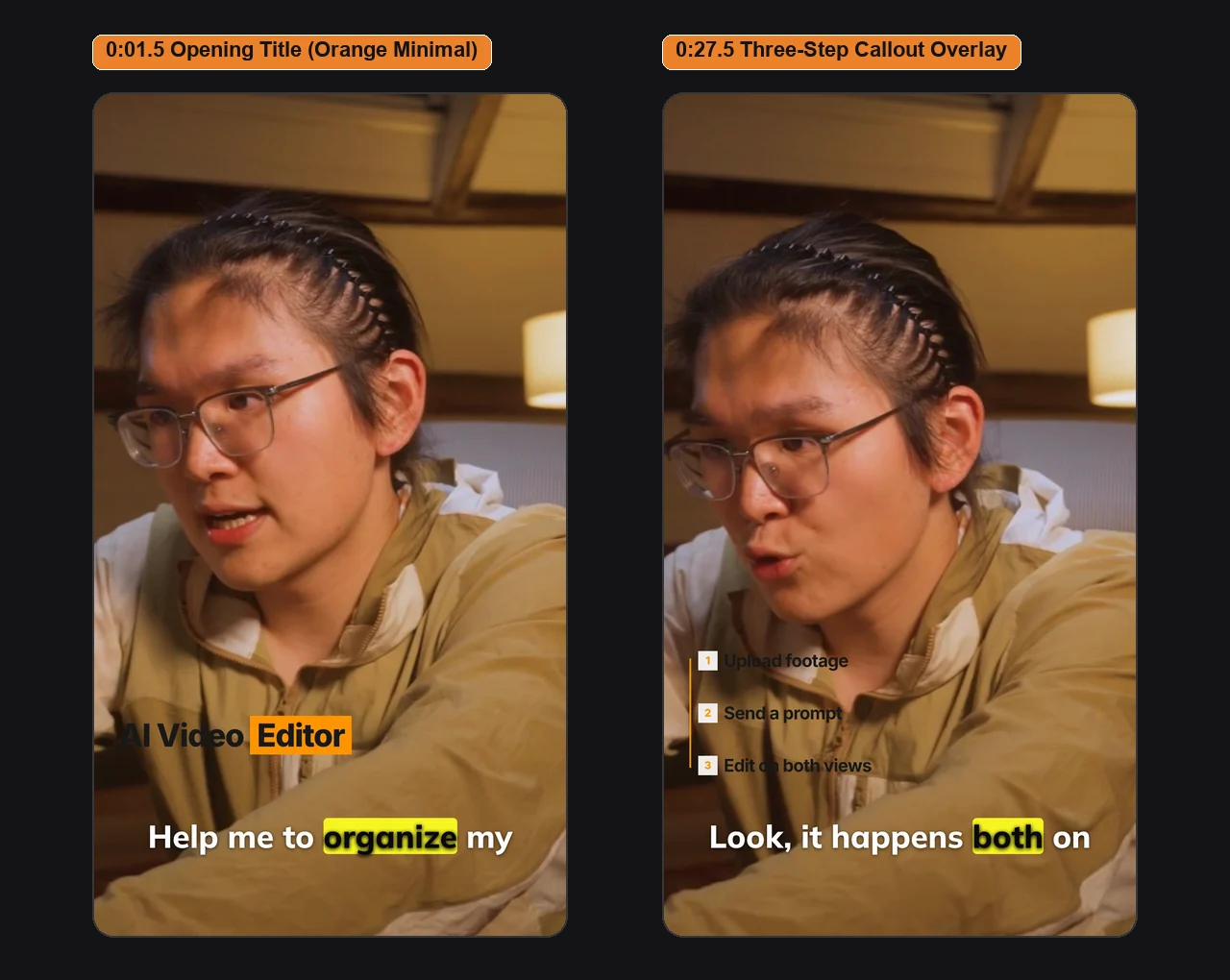
- 0:00 to 0:04: An animated Orange Minimal opening title (“AI Video Editor”) above the lower-third captions.
- 0:05 to 0:06: The first punch-in zoom and subtle library whoosh on “add captions,” paired with yellow active-word caption highlighting.
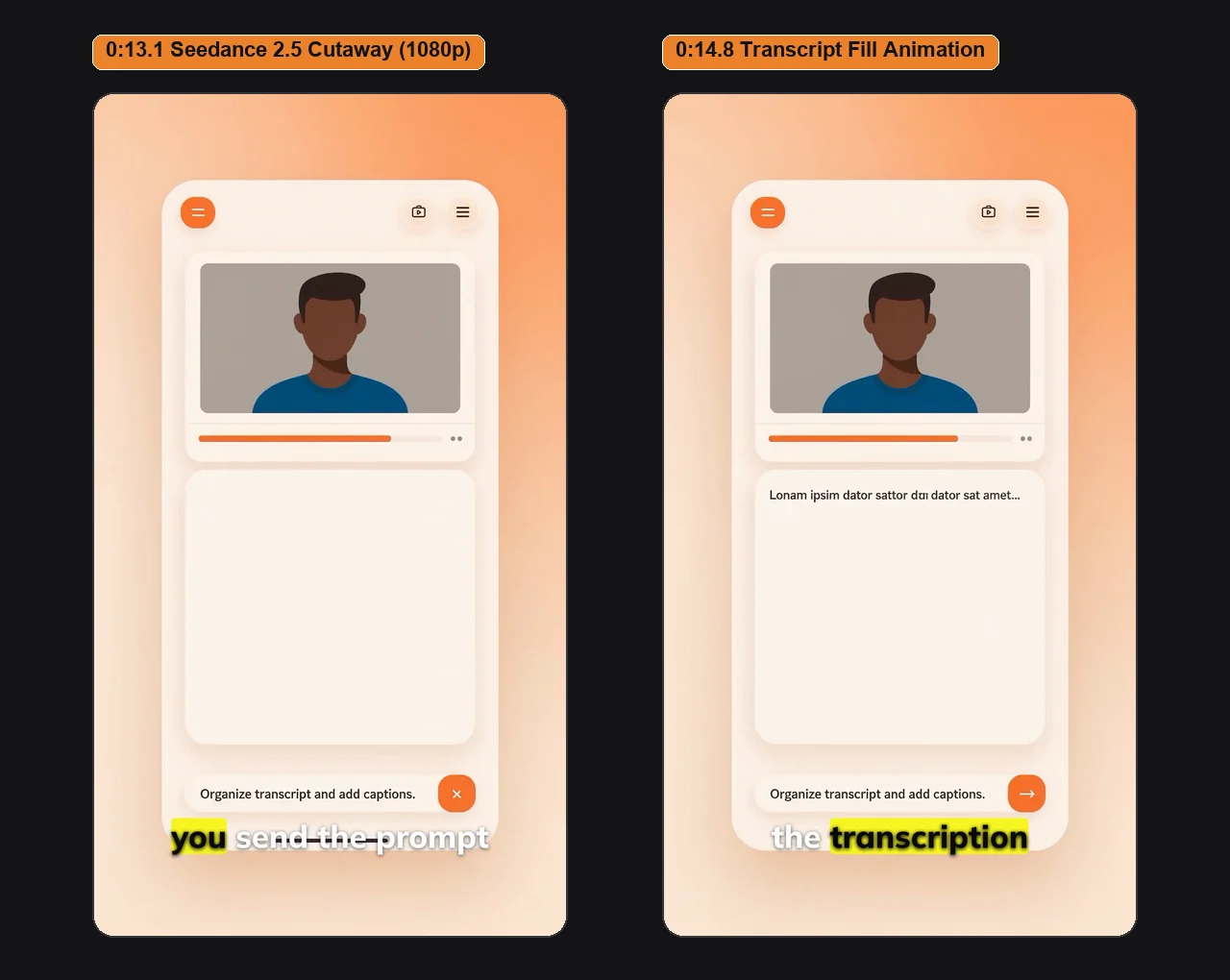
- 0:11 to 0:16: A 5-second 1080p Seedance 2.5 cutaway covering the line about uploading footage and sending a prompt, with its generated audio muted so the presenter’s voice stays uninterrupted.
- 0:22 to 0:30: A second punch-in zoom on “And now we start editing,” followed by a compact three-step Motion Graphic callout (“Upload footage,” “Send a prompt,” “Edit on both views”).
- 0:00 to 0:43: A warm instrumental piano and pad bed with a 1.5-second fade-in, auto-ducking under speech, and a 2.0-second fade-out.
Quick start: how to use Grok Bot to edit a video in five steps
- Connect ChatCut once. Open the Grok Bot desktop or mobile app and send
Read ChatCut.io/grok to connect the ChatCut app(also listed on the ChatCut plugin page for Grok Bot), then tap Authorize on the ChatCut card to sign in with OAuth. - Attach your footage and cut the A-Roll. Attach a clip from your computer or phone camera roll, state the target aspect ratio and length, and ask Grok Bot to transcribe the speech and cut fillers, retakes, and dead air.
- Lock captions, zooms, and sound cues. Add phone-readable word-level captions and modest punch-in zooms on key lines while the cut is still clean and easy to check.
- Layer B-Roll, graphics, and music. Ask for Motion Graphic titles or callouts (0 credits when authored directly), generated B-roll cutaways, and auto-ducked background music, requiring a credit quote before any paid generation starts.
- Export MP4 or refine in the browser. Ask Grok Bot to render a 1080p MP4 download link right in chat, or open the project link in
app.chatcut.ioto tweak wording, contrast, or cut points on the multi-track timeline.
What you need before you start
- The Grok Bot app with an active plan. Install Grok Bot on macOS, Windows, Linux, iPhone (iOS 18+), or Android (Android 9+) and sign in with an account that includes Grok Bot access.
- A ChatCut account. ChatCut’s Free plan covers project creation, uploads, transcription, cuts, captions, agent-authored Motion Graphics, and up to 60 cumulative minutes of cloud export. You only need a paid ChatCut plan and credits if you want Grok Bot to generate AI video clips or other paid AI assets.
- Source video you have the rights to edit. On desktop, Grok Bot accepts chat attachments up to 1 GB per file (Files and Results). On iPhone or Android, attach clips with + in chat, share straight from your Photos app via the system Share Sheet, or ask Grok Bot for a ChatCut browser upload link if a long recording is still only on your phone.
- A concrete brief and credit cap. Decide the aspect ratio (9:16 or 16:9), target duration, and maximum ChatCut credits you are willing to spend before sending generation prompts.
A-Roll and B-Roll: why one pass per message beats one giant prompt
Every clean agent edit separates into two stages:
- A-Roll is your spoken spine: the presenter take that carries the argument, timed captions, and emphasis zooms (Steps 2 to 4 below).
- B-Roll is everything placed over or under that spine to illustrate or score it: animated titles, step callouts, cutaway footage, and background music (Steps 5 to 7 below).
Sending all seven requests in a single paragraph forces the agent to place graphics, cutaways, and music onto a timeline you have not approved yet. If you trim five more seconds of speech afterward, every overlay shifts. Building the A-Roll one message at a time lets you verify the pacing first, and stepping through B-Roll one layer at a time ensures Grok Bot quotes exact ChatCut credits before generating anything that costs money.
Step-by-step: edit a video with Grok Bot and ChatCut
Step 1. Connect ChatCut in one message (and check permissions)
Open Grok Bot on desktop or mobile, click + (New Bot) in the left sidebar, and send the setup prompt from ChatCut.io/grok:
Because ChatCut is not yet prelisted in Grok Bot’s built-in catalog, Grok Bot reads the official instructions at ChatCut.io/grok and registers ChatCut’s hosted Web plugin as a custom remote HTTPS server (https://api.chatcut.io/api/external-mcp/mcp with the non-credential source header x-chatcut-mcp-client: grok).
Grok Bot posts an Authorize card in the chat. Tap Authorize (on iPhone this can open inside the Grok Bot app), sign in to your ChatCut account, and approve access. Never type your ChatCut password, one-time login code, or browser cookies into the chat. OAuth grants Grok Bot permission to list, create, edit, and export projects in your ChatCut account without exposing your credentials, and you can revoke access anytime from Connect apps in Grok Bot.
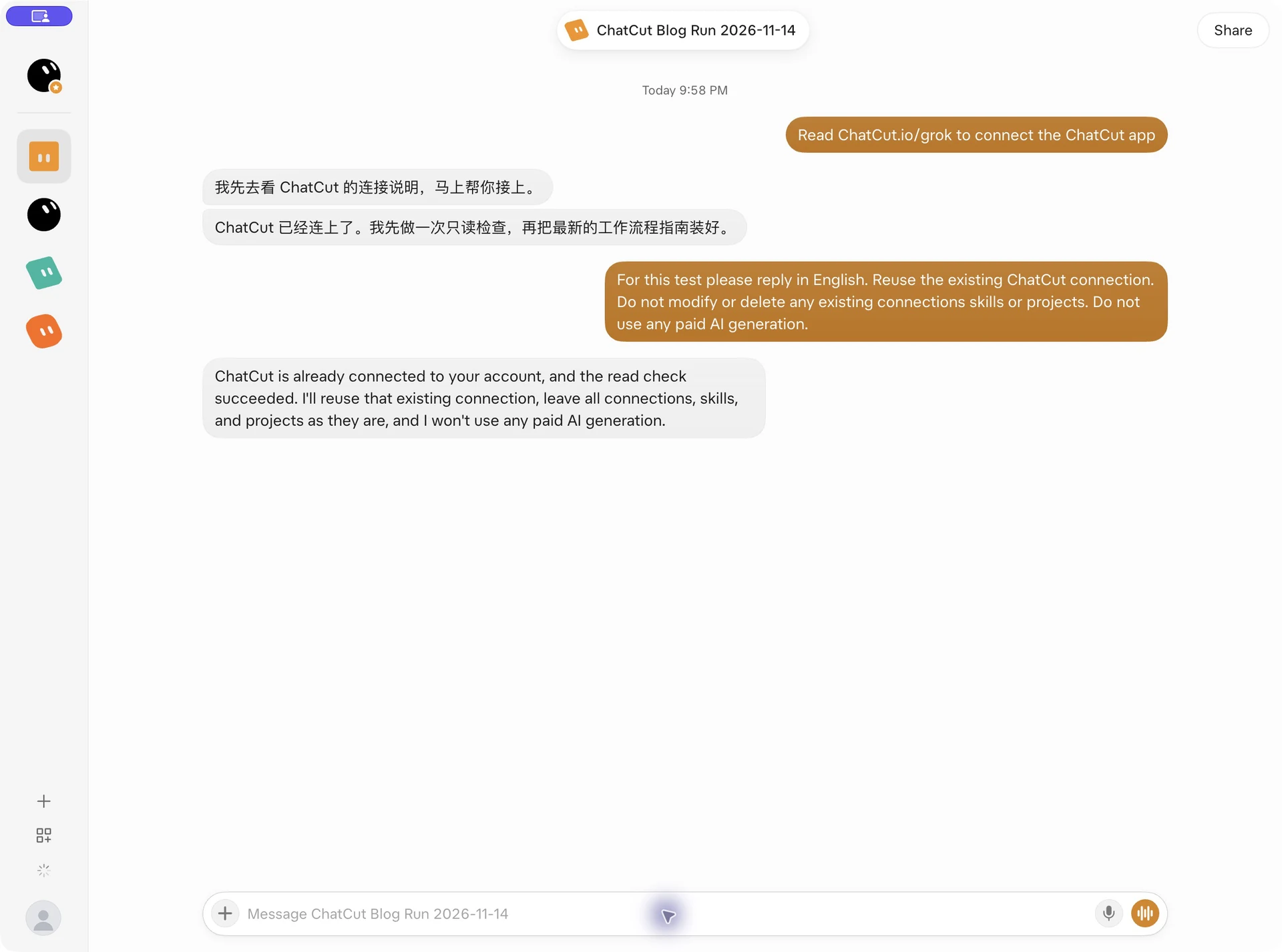
After OAuth succeeds, Grok Bot runs one read-only project check, downloads ChatCut’s workflow guides into ~/.chatcut on its cloud computer, and saves a private chatcut skill so future conversations know ChatCut’s editing rules. Because connections are account-wide, when we opened a fresh New Bot to verify reuse, Grok Bot confirmed the existing ChatCut connection and passed the read check in 53 seconds at 0 credits:
Step 2. Attach your raw clip and build the A-Roll rough cut
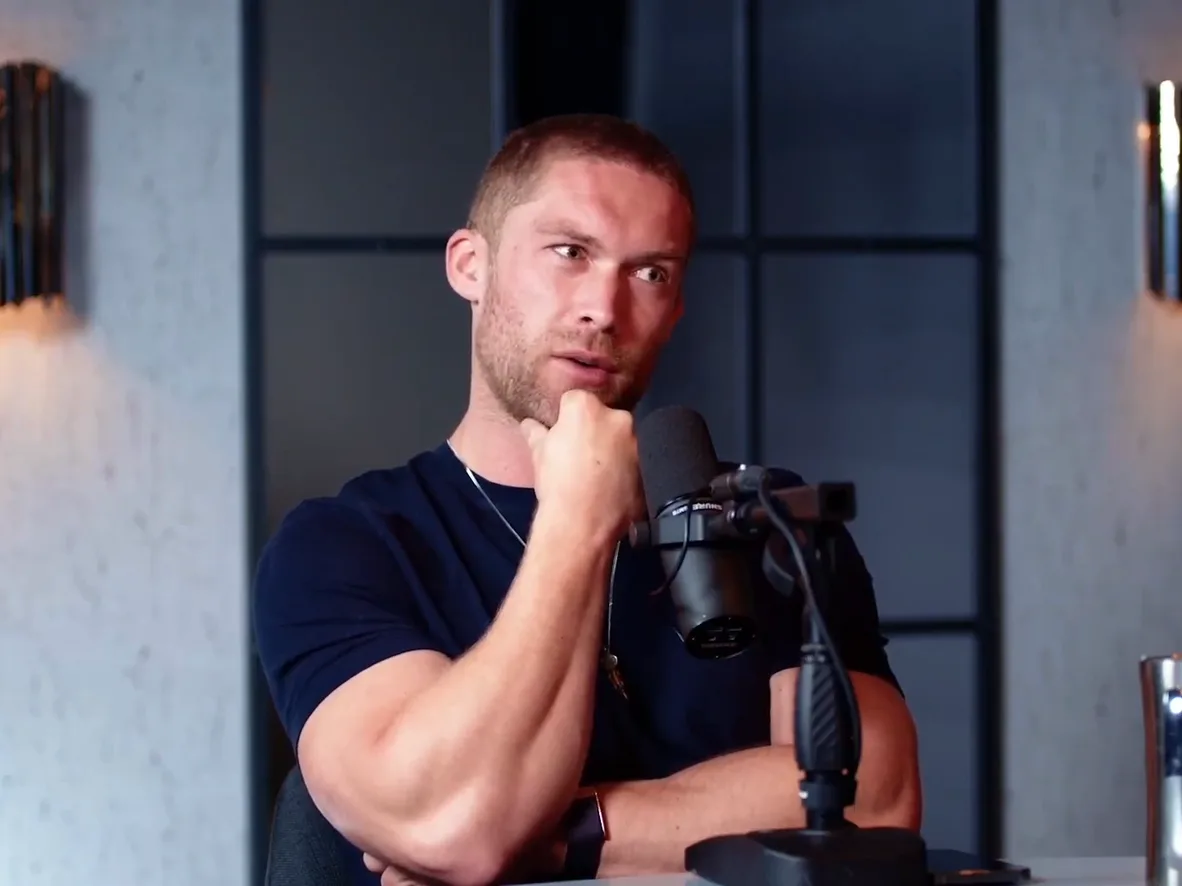
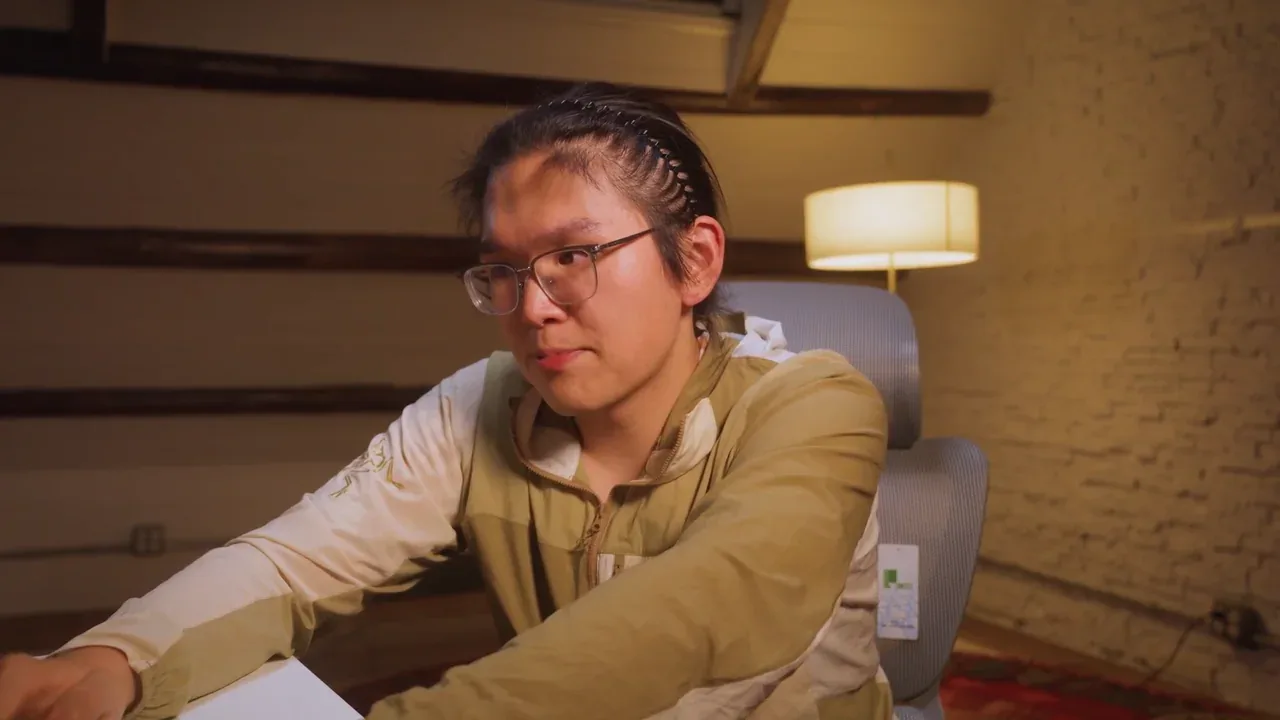
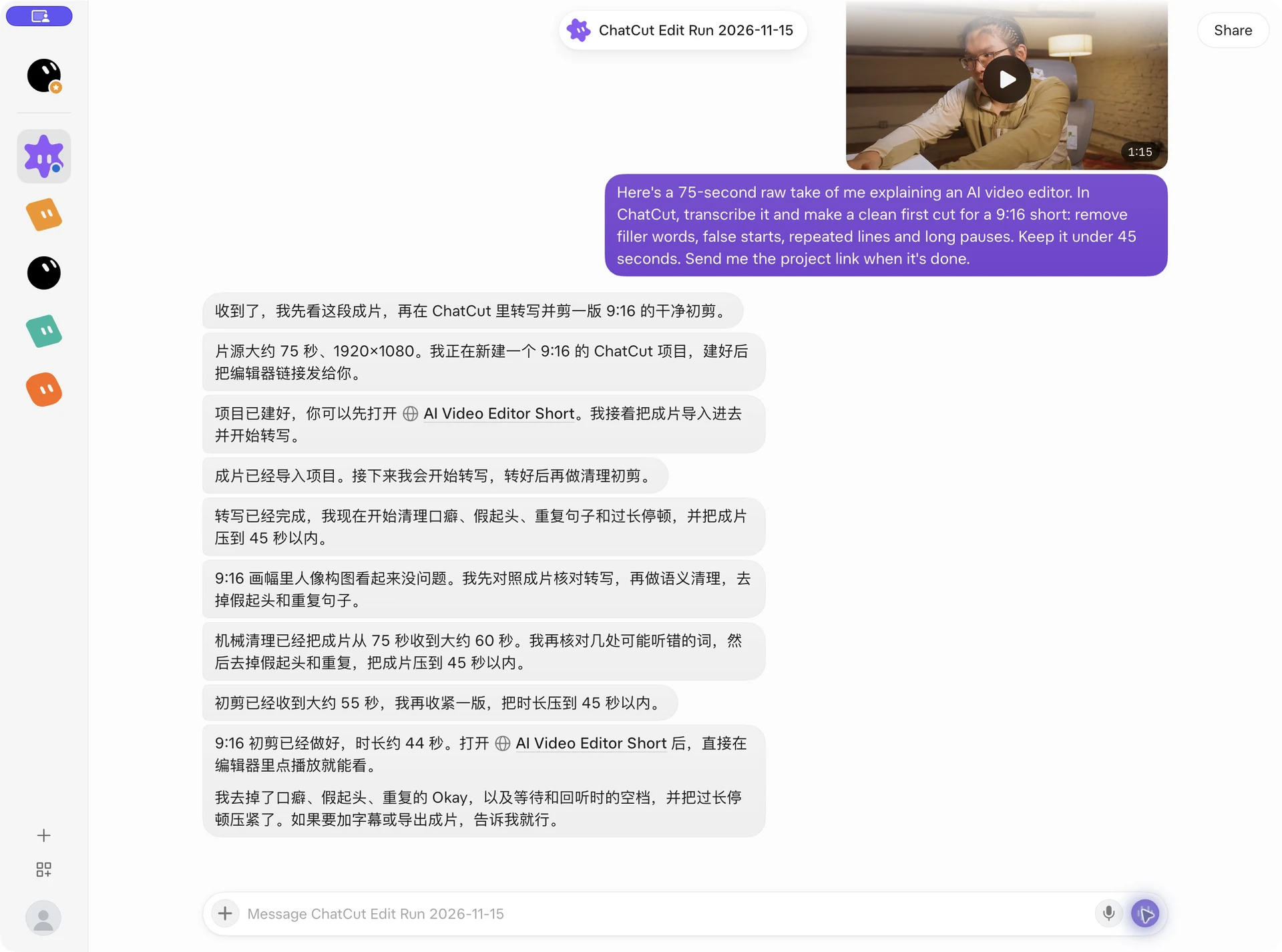
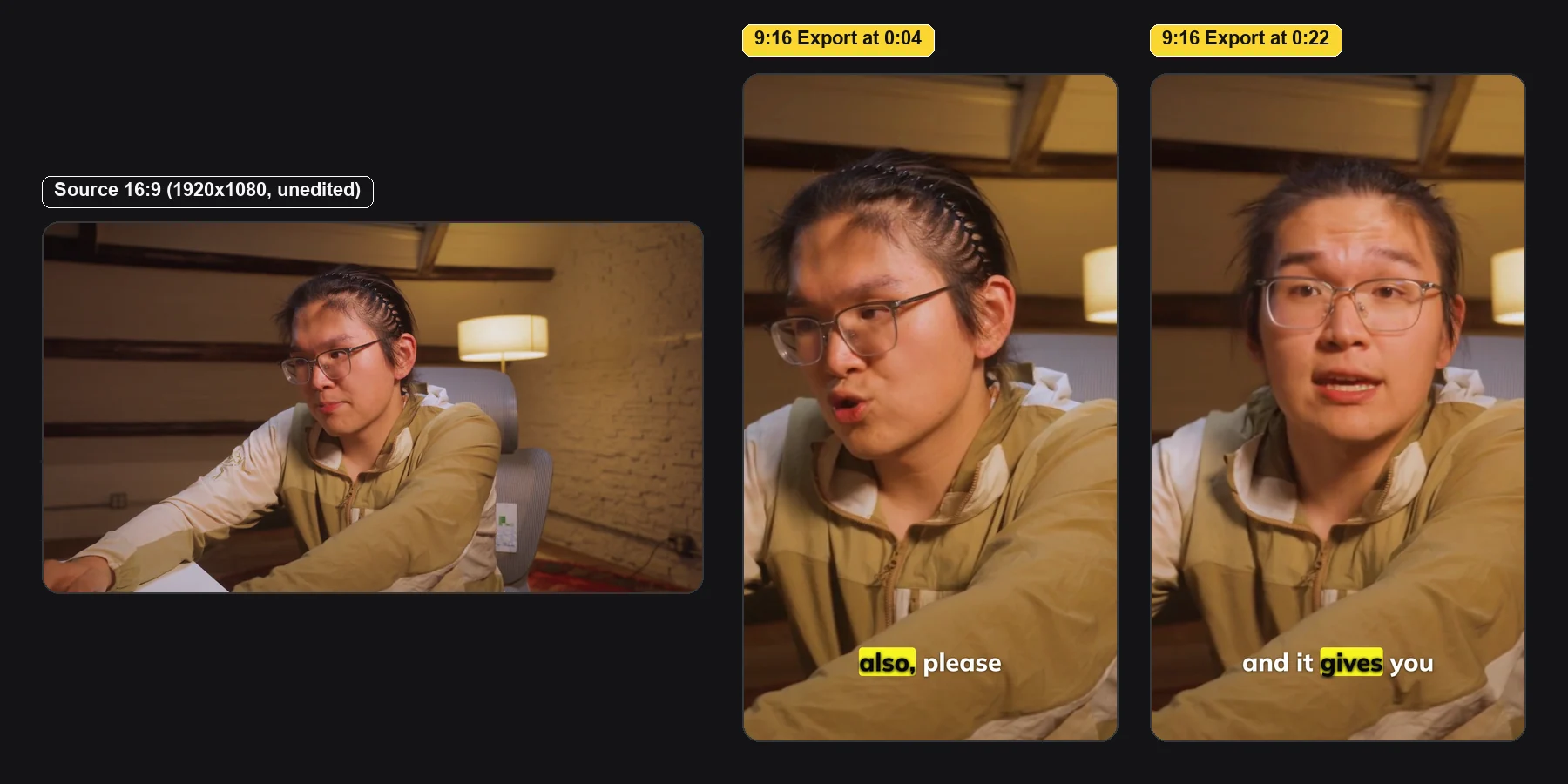
For our test edit, we recorded a 75.0-second 1080p horizontal talking-head take (1920x1080, 23.976 fps) explaining how transcript-based AI video editing works, complete with filler “uh” sounds, typing pauses, a 6-second wait while watching a screen, and a repeated closing sentence:
Attach your video with the + button in the message bar and send a clear first-cut brief:
Grok Bot uploaded the clip from its cloud computer into a new 9:16 ChatCut project, ran text-based speech transcription, and tightened the edit in two passes: first a mechanical cleanup from 75.0 seconds down to roughly 60 seconds, then a semantic trim down to 43.8 seconds by dropping repeated “Okay” fillers, the 6-second silent wait, and the duplicate ending take. That entire upload, transcription, 9:16 reframe, and rough cut took 10 minutes 5 seconds and cost 0 ChatCut credits.
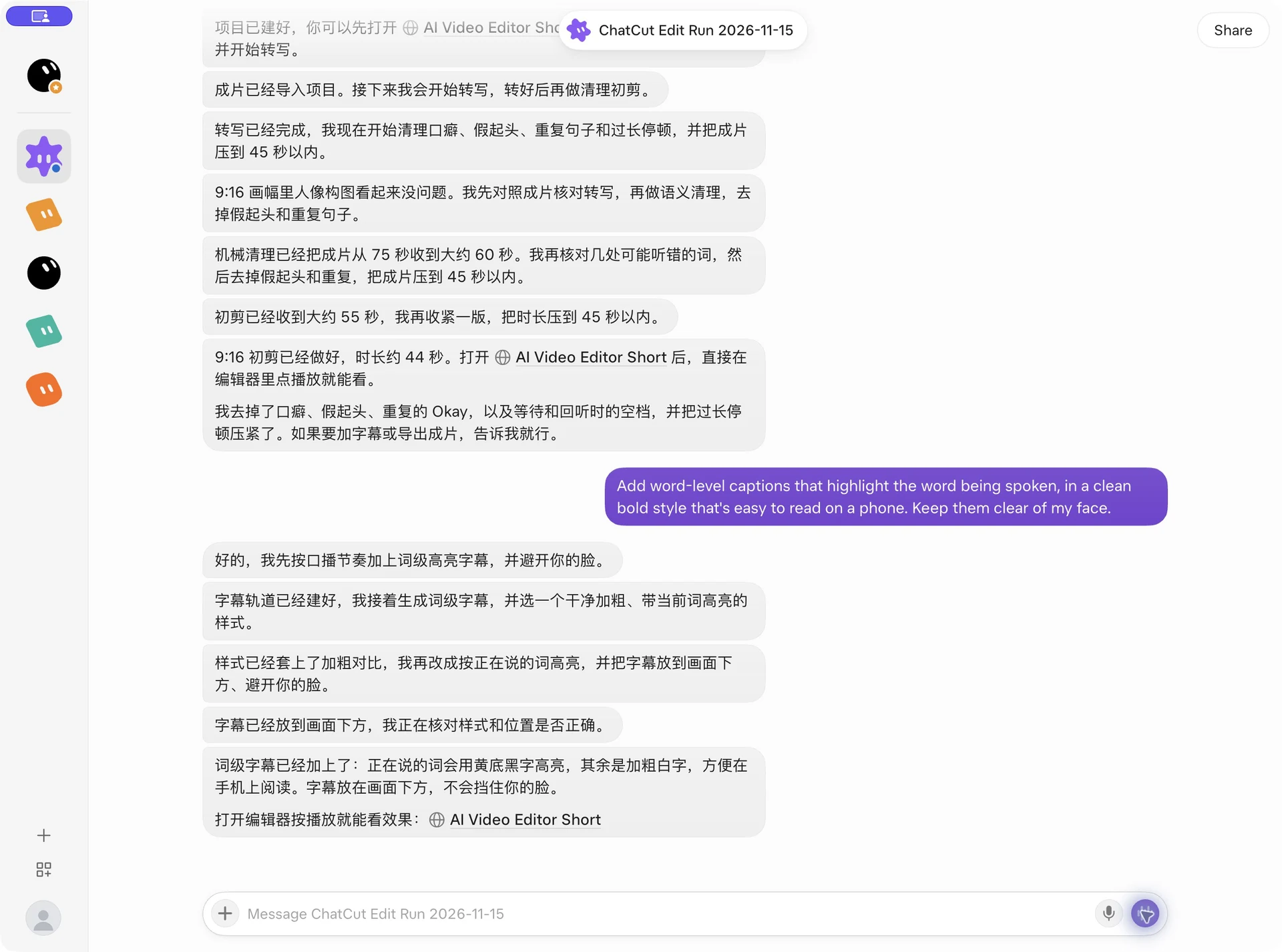
(Note on the screenshots in Steps 2 and 3: because an earlier test on the same Grok Bot account had been run in Chinese, Grok Bot’s account-level memory replied in Chinese for the first two turns even though our prompts were in English. Adding “Please reply in English from now on” switched Steps 4 through 8 back to English immediately.)
Step 3. Add word-level captions that stay clear of your face
Once the spoken timing is locked, add AI captions in their own pass so you can specify weight, active-word highlighting, and placement:
In 2 minutes 29 seconds (0 credits), Grok Bot generated a word-timed caption track styled in bold white sans-serif type with a rounded bright-yellow highlight pill jumping word by word in the lower safe zone, well below the presenter’s chin. Right after this turn, we also set a strict session budget in chat: no more than 30 ChatCut credits total, no more than 15 credits for a single B-roll clip, and mandatory cost approval before any paid generation.
Step 4. Finish the A-Roll with punch-in zooms and subtle sound effects
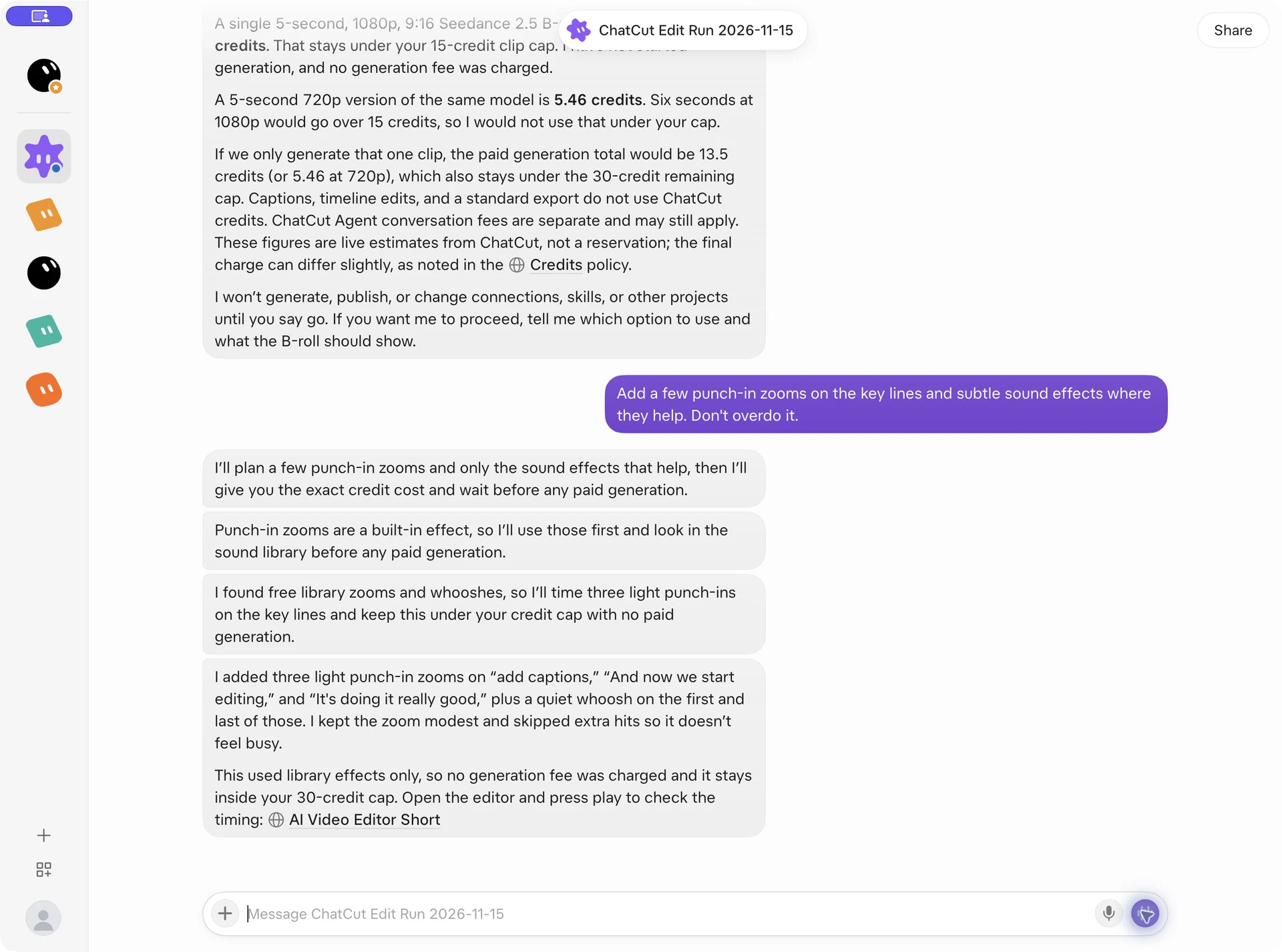
A 44-second vertical talking-head clip still feels static if the framing never changes. Before adding overlays, ask for restrained punch-ins and library sound cues on the strongest lines:
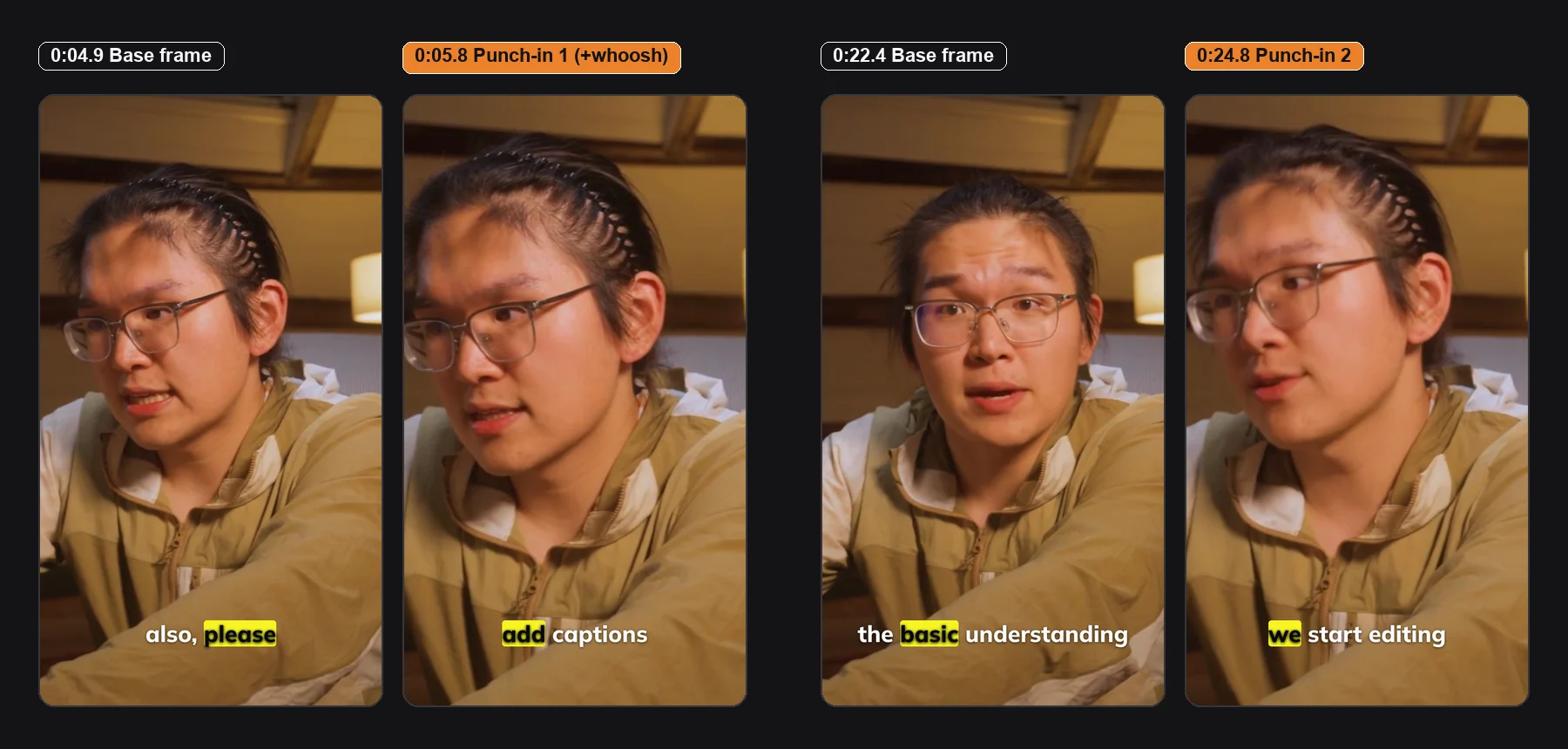
Grok Bot finished in 1 minute 46 seconds at 0 ChatCut credits, using built-in scale framing and library sound effects rather than paid audio generation. It placed modest punch-in zooms on three key lines (“add captions,” “And now we start editing,” and “It’s doing it really good”) and paired a quiet whoosh with only the first and last zoom so the middle of the Short did not sound cluttered. That completed our A-Roll spine.
Step 5. Add an animated opening title and a Motion Graphic key-point callout
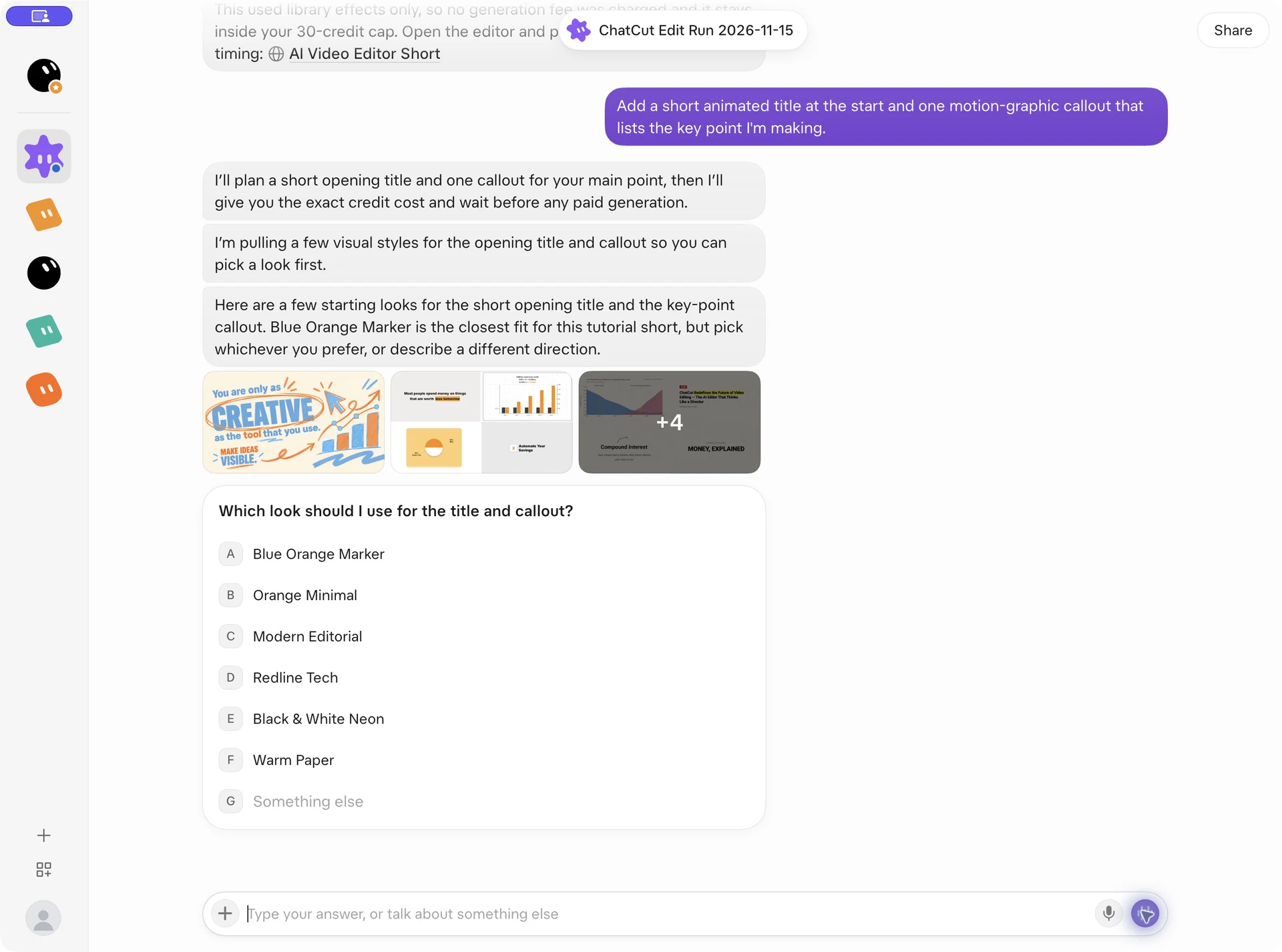
Now B-Roll begins. Instead of burning static text into video, ChatCut lets agents author editable AI Motion Graphics layers directly on the timeline:
Before building anything, Grok Bot displayed visual style thumbnails and an interactive A-to-G picker right inside the chat (Blue Orange Marker, Orange Minimal, Modern Editorial, Redline Tech, Black & White Neon, Warm Paper, or custom):
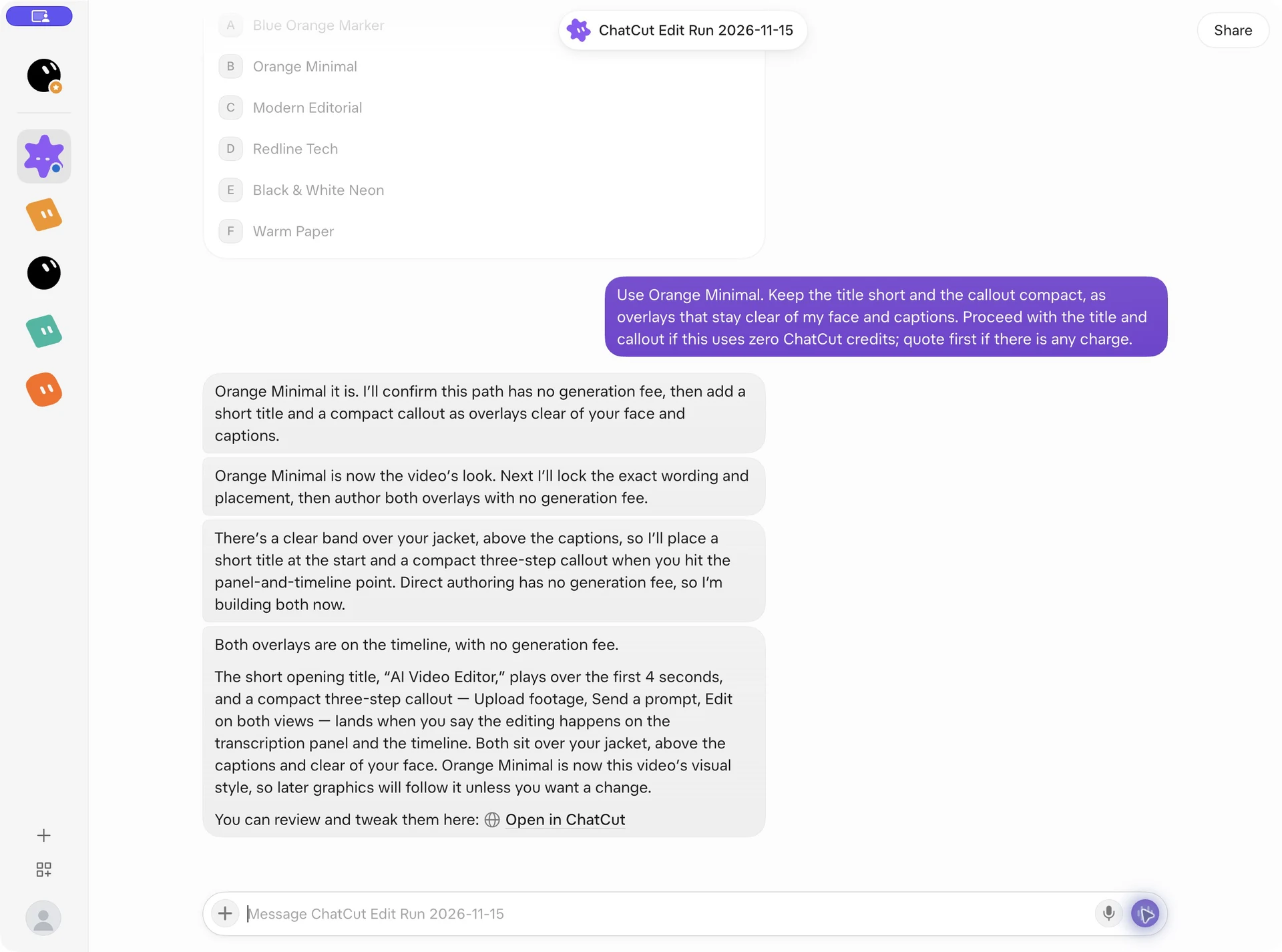
We replied to select Orange Minimal and keep both overlays compact and free of generation charges:
In 4 minutes 59 seconds total (0 credits), Grok Bot authored two transparent Motion Graphic layers directly on the timeline: a 4-second opening title (“AI Video Editor”) and a three-step callout (“Upload footage,” “Send a prompt,” “Edit on both views”) timed to the moment the speaker explains that edits happen on both the transcript panel and the timeline.
Step 6. Generate an AI B-Roll cutaway after approving the credit quote
When you do not have a screen recording or second camera angle to cover a spoken point, ChatCut’s AI video generator can create a tailored cutaway. Always ask Grok Bot to quote the credit cost before generating:
Grok Bot matched a 5-second 9:16 cutaway concept to the spoken line about uploading footage and sending a prompt, confirmed it would mute the generated clip’s audio so the presenter’s voice stayed clear, and posted a live resolution and price picker (1080p, 13.5 credits, 720p, 5.46 credits, 480p draft, 2.43 credits, or Don’t generate) without charging anything for the quote:
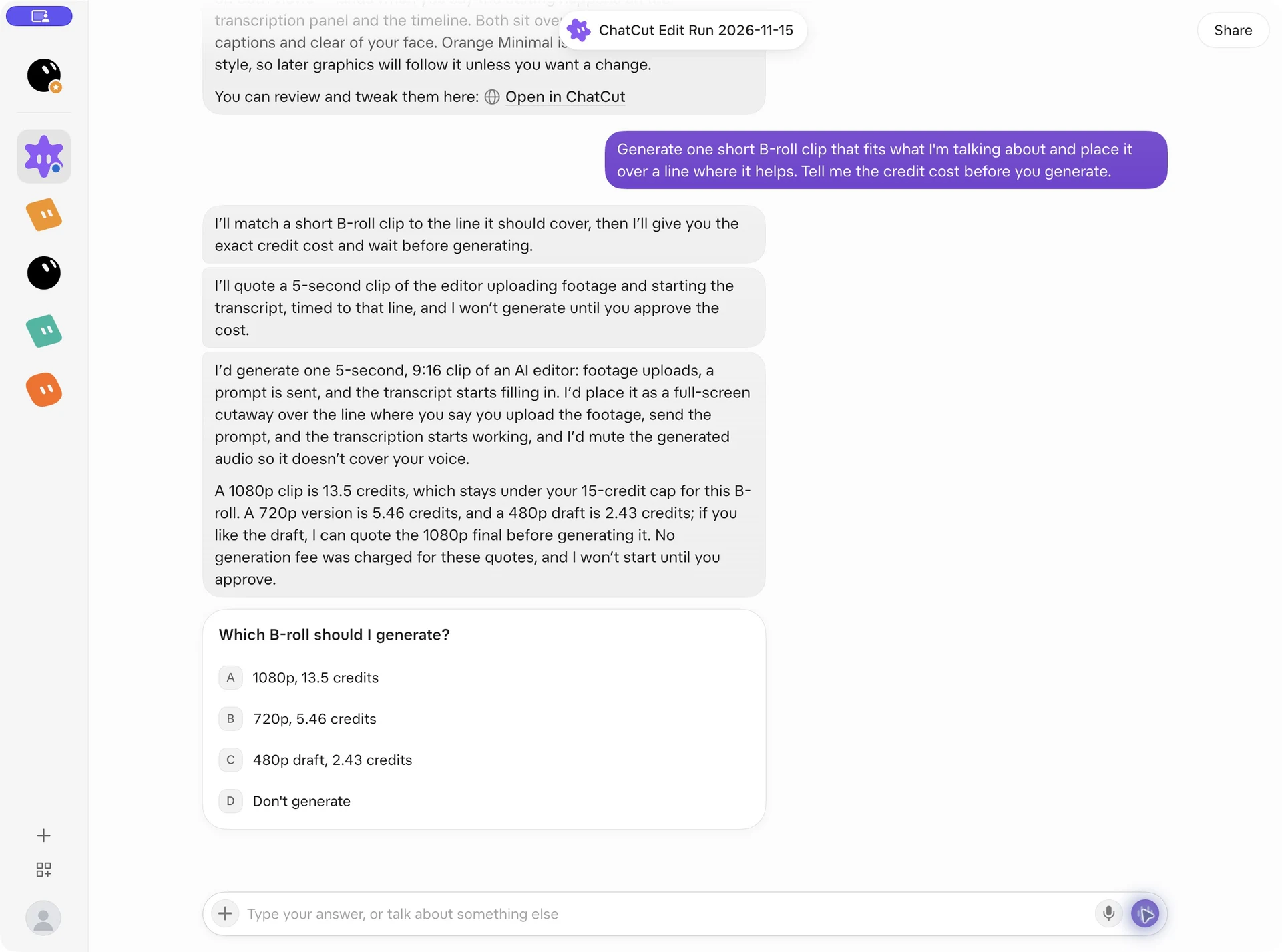
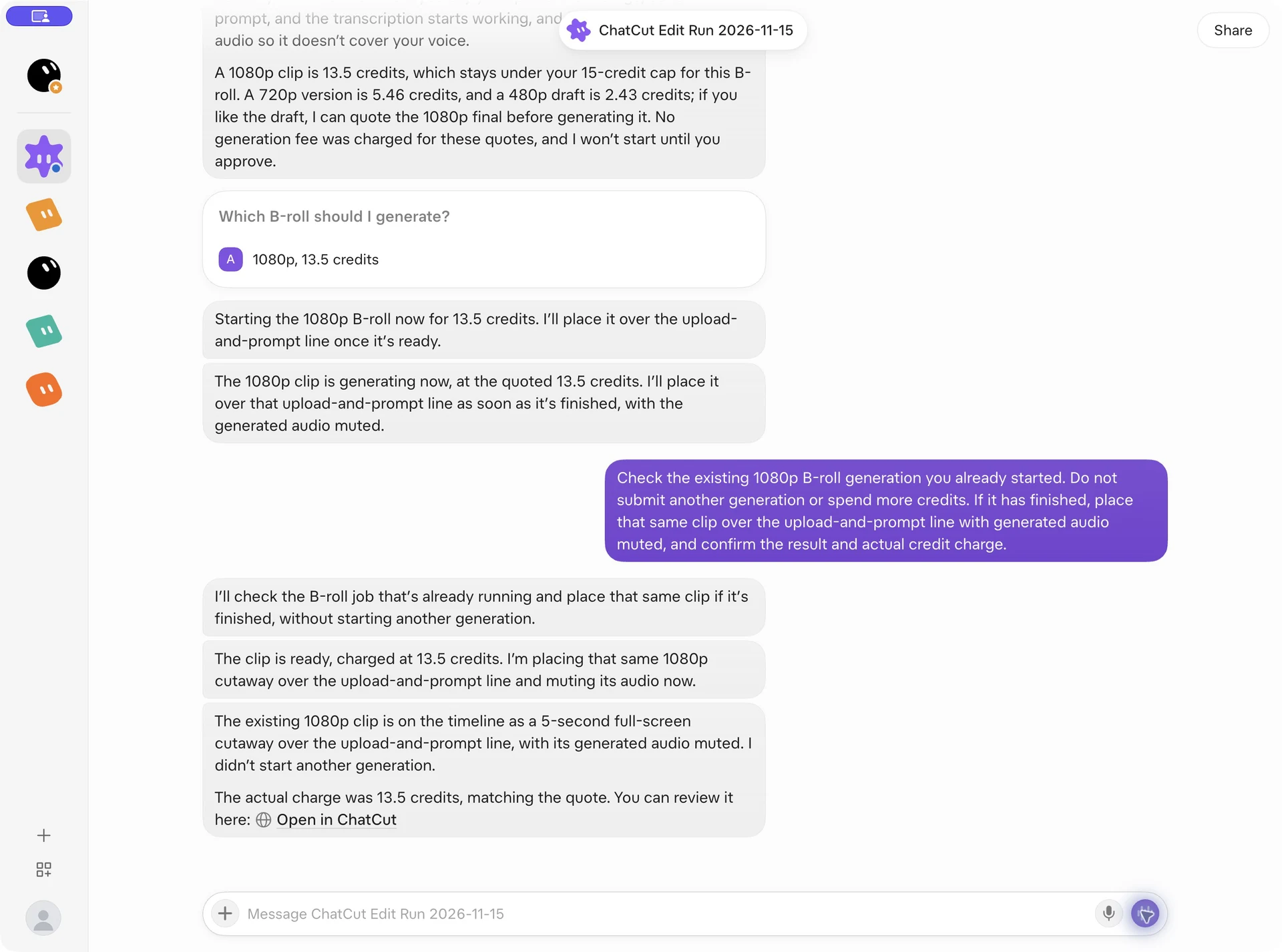
We selected A (1080p, 13.5 credits) to generate a crisp full-resolution Seedance 2.5 clip. After about four quiet minutes while the cloud render finished, we sent one status-check message instructing Grok Bot to check the existing job without submitting a duplicate generation:
Grok Bot confirmed the original job had completed, placed the 5-second 1080p cutaway fullscreen over 0:11 to 0:16 with its audio muted, and settled at the exact quoted 13.50 ChatCut credits (6 minutes 48 seconds total for quoting, rendering, and placement).
Step 7. Layer soft background music with fades and auto-ducking
To tie the jump cuts together, ask for subtle AI background music that automatically ducks whenever you speak:
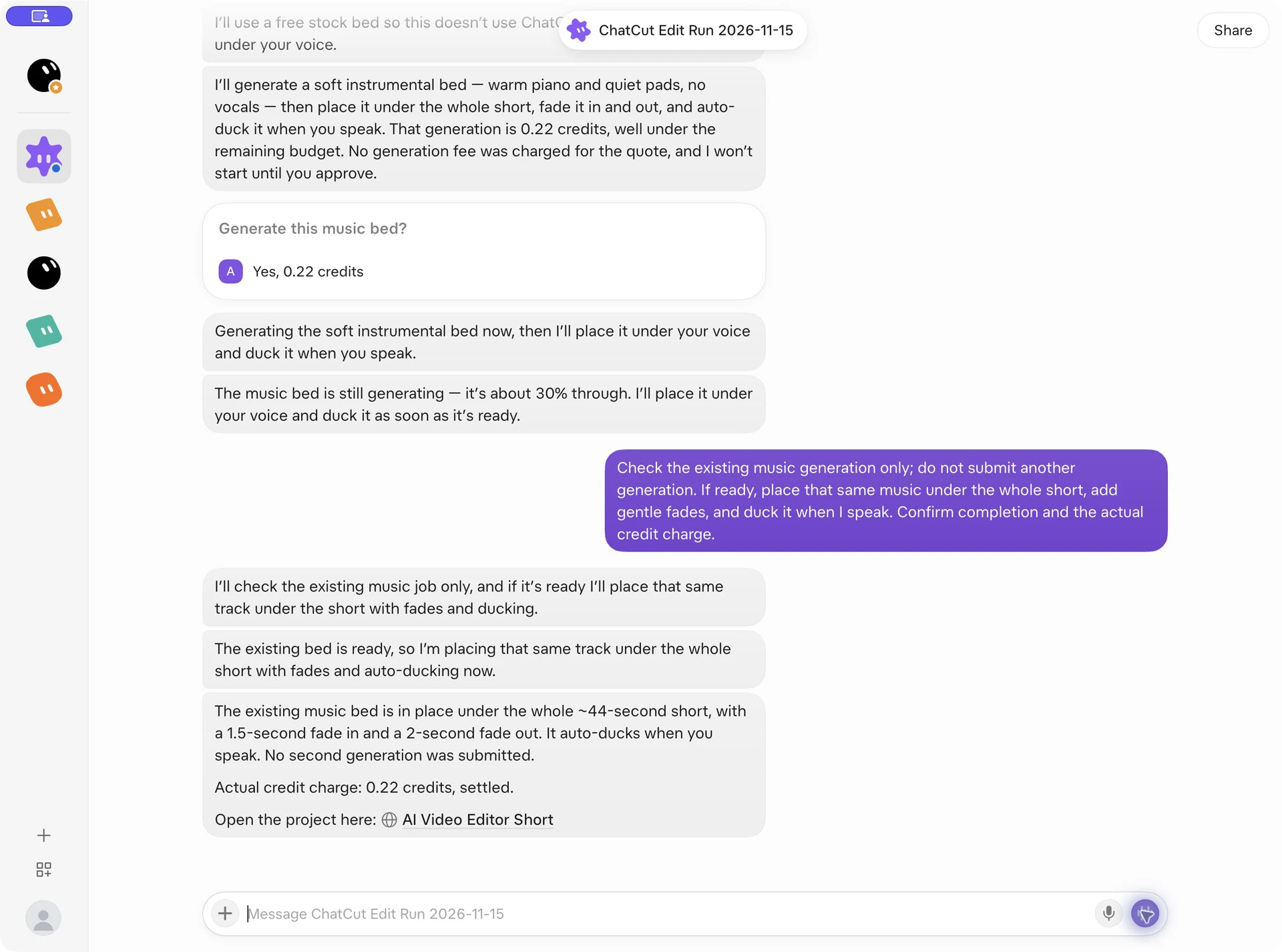
Grok Bot proposed generating a custom vocal-free instrumental bed (warm piano and quiet ambient pads) and paused with an approval card for 0.22 ChatCut credits. After we approved Yes, 0.22 credits and followed up once on the existing job, Grok Bot placed the track underneath the full 43.8-second Short with a 1.5-second fade-in, a 2.0-second fade-out, and automatic speech ducking (5 minutes 41 seconds total, 0.22 credits settled; if your clip also needs a missing spoken bridge, ChatCut’s AI voiceover tools work on the same approval pattern).
Step 8. Export the final MP4 (or fine-tune on the web timeline)
Finally, ask Grok Bot to render the finished vertical MP4 and summarize every change on the timeline:
In 1 minute 11 seconds (0 ChatCut credits, using 43.7 seconds of the Free plan’s 60-minute cloud export allowance), Grok Bot posted an inline playable video card, a direct MP4 download link that works in any desktop or mobile browser without signing in, and an itemized recap of all six editing passes:
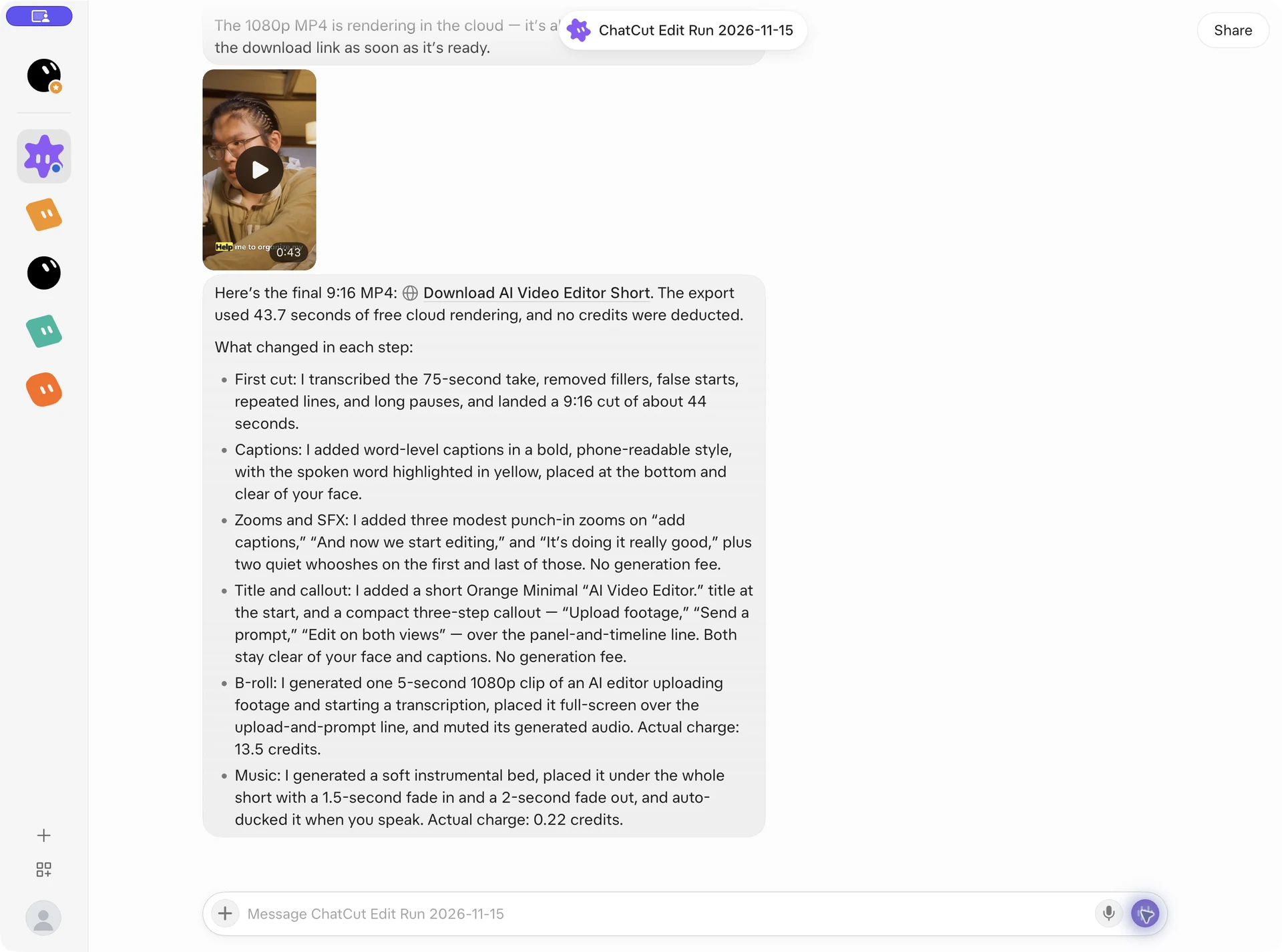
| Step | What Grok Bot changed on the ChatCut timeline | Wall-clock time | ChatCut credits billed |
|---|---|---|---|
| 1. Connect & verify | Reused account-level ChatCut OAuth connection and ran read check | 0 min 53 sec | 0.00 |
| 2. A-Roll rough cut | Uploaded 75.0s 16:9 take, transcribed speech, cut fillers/pauses to 43.8s 9:16 | 10 min 05 sec | 0.00 |
| 3. Word-level captions | Added bold lower-third captions with yellow spoken-word highlight pill | 2 min 29 sec | 0.00 |
| 4. Zooms & SFX | Added 3 modest punch-in zooms + 2 library whoosh hits | 1 min 46 sec | 0.00 |
| 5. Motion Graphics | Previewed 6 styles, authored Orange Minimal title + 3-step callout | 4 min 59 sec | 0.00 |
| 6. AI B-Roll cutaway | Quoted 3 tiers, generated 5s 1080p Seedance 2.5 clip, muted its audio | 6 min 48 sec | 13.50 |
| 7. Music & ducking | Quoted, generated, faded, and auto-ducked warm piano/pad bed (-18.3 LUFS) | 5 min 41 sec | 0.22 |
| 8. Cloud MP4 export | Rendered 1080x1920 MP4 (43.7s of Free cloud export allowance) + direct link | 1 min 11 sec | 0.00 |
| Edit session total | Steps 2 to 8 end-to-end (including quote approvals and status checks) | 37 min 54 sec | 13.72 |
Behind the scenes across those turns, Grok Bot orchestrated ChatCut’s remote tools (list_projects, create_project, import_media, read_script, apply_script, edit_captions, edit_item, manage_template, estimate_generation, submit_video, submit_music, track_progress, and export) against one persistent cloud project. If you want to finish color grading or audio mixing in Premiere Pro, DaVinci Resolve, or Final Cut Pro, you can also open the project link in app.chatcut.io and use XML timeline export instead of rendering an MP4.
Copyable Grok Bot prompts for common editing tasks
Once ChatCut is connected to your Grok Bot account, you can paste and adapt these briefs on desktop or mobile. For dozens more stage-by-stage templates, see our video editing prompts guide.
Talking-head cleanup (0 ChatCut credits)
Long-form podcast or interview to 9:16 Shorts
If you are cutting a multi-minute episode, pair Grok Bot with our guide to turning long videos into Shorts or the Long Video to Shorts Skill:
Product demo or explainer walkthrough
What you still need to review before publishing
Watching and listening to our exported 43.8-second MP4 frame by frame surfaced four details that chat summaries alone will not catch:
- Overlay text contrast against clothing. In Step 5, the orange highlight block behind “Editor” and the numbered badges read clearly, but the unbacked dark grey words (“AI Video” and the three callout labels) landed over dark olive shadows on the presenter’s jacket. Always scrub your title and callout frames; if dark type blends into dark wardrobe, open the project in
app.chatcut.io(or ask Grok Bot) to switch the text to white or add a solid pill backing. - Small UI text inside AI-generated B-roll. Our Seedance 2.5 cutaway nailed the bottom prompt bar (“Organize transcript and add captions.”), but its upper mock transcript box rendered pseudo-Latin filler (“Lonam ipsim dator sattor…”). Use AI B-roll for atmospheric cutaways or conceptual beats; record real screen captures whenever viewers will pause to read interface details.
- Homophones on accented speech. At 0:35, the speaker’s slightly nasal pronunciation of “long pause” was transcribed and captioned as “long poles.” Skim your captions once against the audio and fix any misheard word in the Captions text panel rather than deleting it in the Transcript panel (deleting transcript words cuts video frames).
- Cut tightness and music ducking balance. Our finished Short measured an even -18.3 LUFS integrated loudness with speech clearly in front of the piano bed, and the three jump cuts felt natural. Still, listen with headphones from 0:00 to the end to make sure no breath was clipped too tightly before an emphasis word.
What tripped us up in Grok Bot (and how to fix it)
Every issue below happened during our real November 14 and 15 runs in the Grok Bot app:
- A paid video or music generation goes quiet in chat for 3 to 4 minutes. Cloud video and music renders take a couple of minutes, and Grok Bot does not always auto-post the moment a background job finishes. Do not resend your original generation prompt, or you may trigger a second paid render. Send a read-only nudge instead: “Check the existing generation you already started; do not submit another generation or spend more credits. Place that clip if ready.”
- Clicking the
app.chatcut.ioproject link opens a ChatCut sign-in screen. Grok Bot’s OAuth token lives on its cloud connector, not in your local Chrome or Safari cookies. Sign in toapp.chatcut.iowith the same ChatCut account once to inspect the multi-track timeline; meanwhile, exported MP4 download links open directly without signing in. - Asking Grok Bot to screenshot timeline frames inside chat is slower than exporting. In an earlier test run, asking Grok Bot to open the web editor in its cloud browser and capture preview stills took over four minutes and fell back to approximate frames during a cloud network hiccup. Asking Grok Bot to export a cloud MP4 took just 1 minute 11 seconds and gave us the exact final video.
- Grok Bot replies in another language from an earlier chat. Grok Bot’s account-level memory carries preferences across bots. When Steps 2 and 3 replied in Chinese because of a prior test on the same account, adding “Please reply in English from now on” switched the rest of the session to English immediately.
- macOS file-picker Go to Folder jumps back to
/. When attaching our local MP4 in the macOS Grok Bot app, the native file dialog’s Go to Folder sheet reset to/twice without an error. Closing the sheet and selecting the clip directly in the standard Finder folder view (or dragging the MP4 straight into the Grok Bot message box) uploaded cleanly. - The authorization card stays stuck on Waiting for authorization or tools are missing. Tap Reopen on the in-chat ChatCut card or open Connect apps in Grok Bot and tap Reconnect next to ChatCut, complete the browser sign-in, and send a new message.